Problem with my anti-aliasing

Forum dedicated to Microsoft FS2004 - "A Century of Flight".

Problem with my anti-aliasing

Postby Conan Edogawa » Thu Jan 18, 2007 12:23 pm

Hey guys,
Got following problem:

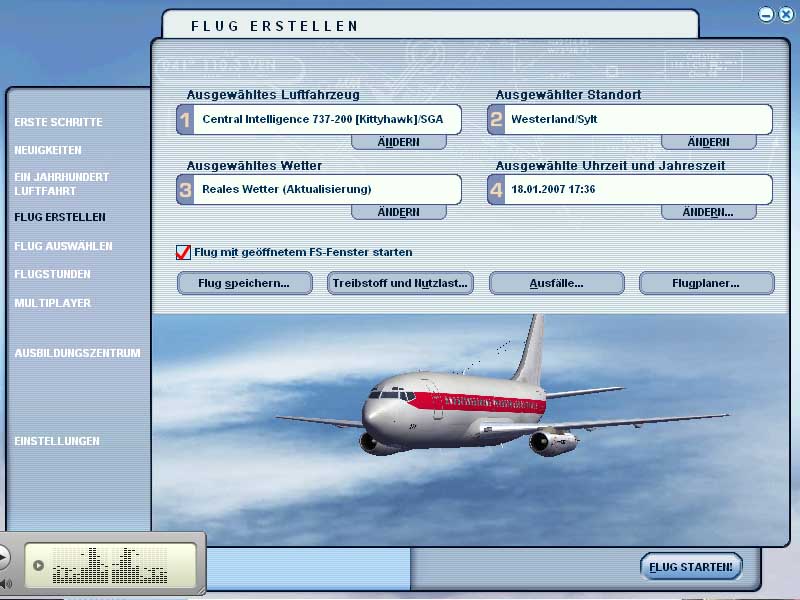
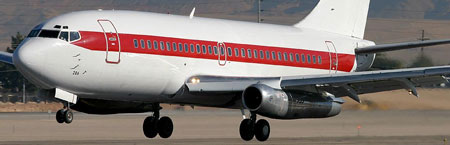
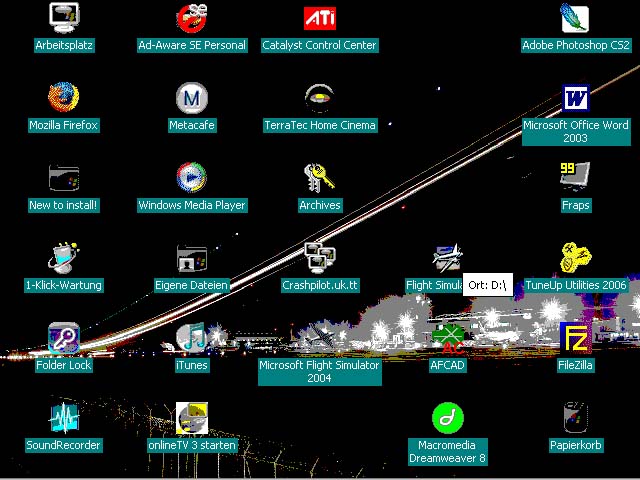
In my Flight Simulator, I activated "anti-aliasing".

....but as you can see...

Image

What could it be? I think I wrote my specs in the signature.

Today I installed the catalyst drivers from ATI (now everything goes better :D, only the CatalystControlCenter doesn't work, but I don't care, that's why  I removed the CCC). I previously deinstalled the VGA driver and after the catalyst installation, I reinstalled VGA (without Control Panel, everything looks crappy with it and PC lags).

Thanks for help :D

P.S.: Sorry for the german language and the tiny part of the iTunes-window ;D
Image

Specs: Intel Core2Quad Q6600 2,4GHz; 3,25GB RAM; nVidia EN8800GTS 512MB; Flight Simulator 9.1.
User avatar
Conan Edogawa
1st Lieutenant
1st Lieutenant
 
Posts: 488
Joined: Tue Dec 26, 2006 5:14 pm
Location: Hamburg, Germany

Re: Problem with my anti-aliasing

Postby kilotango » Thu Jan 18, 2007 12:38 pm

Dont set your AA in the game. Set it on your video card. Try AA4 and AF4.
One other thing. The new catalyst control panels from ati is taken a lot of recources. Try and get an old one to set your fast read/write and open gl/3d setup.
That if you're using ati.
I use CP file version 6.14.10.5142
Last edited by kilotango on Thu Jan 18, 2007 12:43 pm, edited 1 time in total.
kilotango
1st Lieutenant
1st Lieutenant
 
Posts: 306
Joined: Mon Dec 04, 2006 6:46 pm

Re: Problem with my anti-aliasing

Postby Conan Edogawa » Thu Jan 18, 2007 12:53 pm

I already deinstalled the Control Panels.

But where and how can I set the AA on system? :-[
Image

Specs: Intel Core2Quad Q6600 2,4GHz; 3,25GB RAM; nVidia EN8800GTS 512MB; Flight Simulator 9.1.
User avatar
Conan Edogawa
1st Lieutenant
1st Lieutenant
 
Posts: 488
Joined: Tue Dec 26, 2006 5:14 pm
Location: Hamburg, Germany

Re: Problem with my anti-aliasing

Postby kilotango » Thu Jan 18, 2007 1:33 pm

Ups. Again.
Try and right click on your desk. Advanced settings. What do you see?
Is there any red figures, like ATI?
kilotango
1st Lieutenant
1st Lieutenant
 
Posts: 306
Joined: Mon Dec 04, 2006 6:46 pm

Re: Problem with my anti-aliasing

Postby kilotango » Fri Jan 19, 2007 9:26 am

Just for your information. I use a control panel from this old catalyst:
wxp-w2k-catalyst-8-111-050222a-021277c.exe
Then i uninstall win drivers, and get the new ones from ati (amd).
It works perfectly at my place.
kilotango
1st Lieutenant
1st Lieutenant
 
Posts: 306
Joined: Mon Dec 04, 2006 6:46 pm

Re: Problem with my anti-aliasing

Postby Conan Edogawa » Fri Jan 19, 2007 1:30 pm

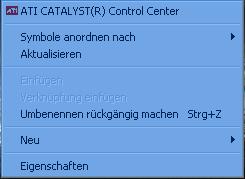
Right click:

Image

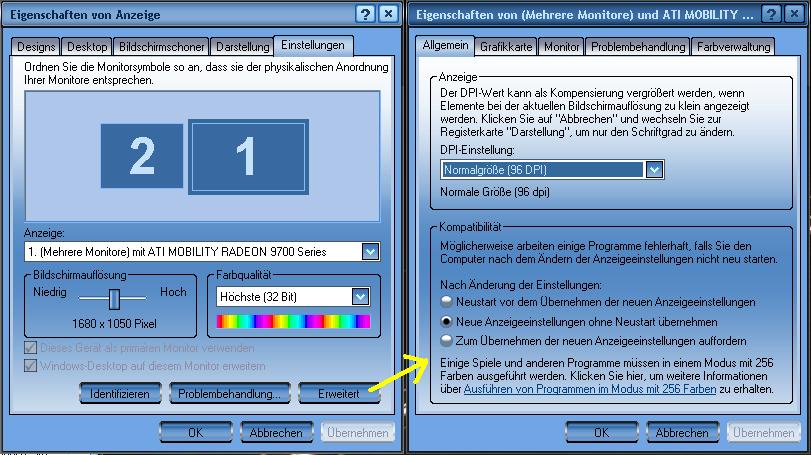
"Eigenschaften":

Image

In every tab is no Anti-Aliasing-option to select... :-?


Sorry for the German.... :(
Last edited by Conan Edogawa on Fri Jan 19, 2007 1:30 pm, edited 1 time in total.
Image

Specs: Intel Core2Quad Q6600 2,4GHz; 3,25GB RAM; nVidia EN8800GTS 512MB; Flight Simulator 9.1.
User avatar
Conan Edogawa
1st Lieutenant
1st Lieutenant
 
Posts: 488
Joined: Tue Dec 26, 2006 5:14 pm
Location: Hamburg, Germany

Re: Problem with my anti-aliasing

Postby kilotango » Fri Jan 19, 2007 3:13 pm

Thats ok. I understand.
You dont have a control panel for the ati card installed.
Try and find the one i mentioned previous. Try ati.com older files. Download it.
Uninstall the display driver you got now. Restart.
Install the catalyst by start, run, then point to where you downloaded the catalysts exe file, press ok.
After a restart, go to the settings you showed, there should now be several ati options.
You can now download the new ati display driver. I would recommend 6.12. The new 7.XX gave me troubles.
Go to add remove programs. Uninstall ati display driver.
After restart, again start, run and point to the new display exe.
You should be done now.
Come back if you need more.
kilotango
1st Lieutenant
1st Lieutenant
 
Posts: 306
Joined: Mon Dec 04, 2006 6:46 pm

Re: Problem with my anti-aliasing

Postby Conan Edogawa » Fri Jan 19, 2007 5:35 pm

Well, that's exacly what I did yesterda with the new catalyst and my usual VGA. Remember: I don't use the Catalyst Panel, because it's broken anyway...
Image

Specs: Intel Core2Quad Q6600 2,4GHz; 3,25GB RAM; nVidia EN8800GTS 512MB; Flight Simulator 9.1.
User avatar
Conan Edogawa
1st Lieutenant
1st Lieutenant
 
Posts: 488
Joined: Tue Dec 26, 2006 5:14 pm
Location: Hamburg, Germany

Re: Problem with my anti-aliasing

Postby kilotango » Fri Jan 19, 2007 5:52 pm

Conan, now we take it very easy.
You need a control panel to set the AA and AF on your video card.
This is the main issue. Don't set it in the flightsim. That's why i try to point you to a CP that's not taking power out from your system.

What did you do exactly yesterday? And what is your usual VGA?

Have you read my last post carefully, and do you understand it? If not, ask ask

Adding:
Dont get messed up with catalyst and display drivers. Catalyst contains it all. Both control panel, display and wdm drivers.
Hope you get that right.
Last edited by kilotango on Fri Jan 19, 2007 6:45 pm, edited 1 time in total.
kilotango
1st Lieutenant
1st Lieutenant
 
Posts: 306
Joined: Mon Dec 04, 2006 6:46 pm

Re: Problem with my anti-aliasing

Postby Conan Edogawa » Sat Jan 20, 2007 6:25 am

1.I uninstalled the main driver (VGA) for my card.
2.I installed the 7.*-Catalyst.
3.After rebooting I realized that my primary monitor doesn't show a desktop, it shows strange lines and such crap. The graphic card moved the normal desktop to my secondary monitor. So I let the catalyst installed and added the VGA, I uninstalled before (vGA comes from the CD).
4.After rebooting everything (except the Catalyst Panel, it didn't show profiles and the settings, just the frame of the Panel without any settings) worked fine.

That's what I exactly did ::)

Can't I just download an old Catalyst Panel without uninstalling the Catalyst drivers I got now?
Last edited by Conan Edogawa on Sat Jan 20, 2007 6:25 am, edited 1 time in total.
Image

Specs: Intel Core2Quad Q6600 2,4GHz; 3,25GB RAM; nVidia EN8800GTS 512MB; Flight Simulator 9.1.
User avatar
Conan Edogawa
1st Lieutenant
1st Lieutenant
 
Posts: 488
Joined: Tue Dec 26, 2006 5:14 pm
Location: Hamburg, Germany

Re: Problem with my anti-aliasing

Postby kilotango » Sat Jan 20, 2007 10:05 am

If you by catalyst drivers mean the windows display drivers, then yes.
But if you got a control panel installed, and try to install another, you will certently get conflicts.

It would be a good idea to get rid of all your ati related drivers on your system before getting new in. Try and look into C/programs/ati technologies there should be a folder called UninstallAll. Open it and press the exe. If you got a reg cleaner program, then run that too, tho, you can go on without.

If you don't got the uninstall program, i could mail it if you want. Just let me know.
kilotango
1st Lieutenant
1st Lieutenant
 
Posts: 306
Joined: Mon Dec 04, 2006 6:46 pm

Re: Problem with my anti-aliasing

Postby Conan Edogawa » Sat Jan 20, 2007 10:25 am

No thanks.  ;)

I'm just thinking if I should do it, because after I installed the new Catalysts and the usual VGA everything worked much better (except the AA).

So, I will get that through my mind first... ::)

Never mind, but thanks for help. ;)
Image

Specs: Intel Core2Quad Q6600 2,4GHz; 3,25GB RAM; nVidia EN8800GTS 512MB; Flight Simulator 9.1.
User avatar
Conan Edogawa
1st Lieutenant
1st Lieutenant
 
Posts: 488
Joined: Tue Dec 26, 2006 5:14 pm
Location: Hamburg, Germany

Re: Problem with my anti-aliasing

Postby Alonso » Sat Jan 20, 2007 10:54 am

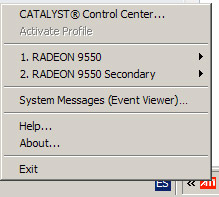
You must set the AA in the Catalyst Control Center (CCC), if you have installed it you may see an icon like this, click on Catalyst Control Center

Image

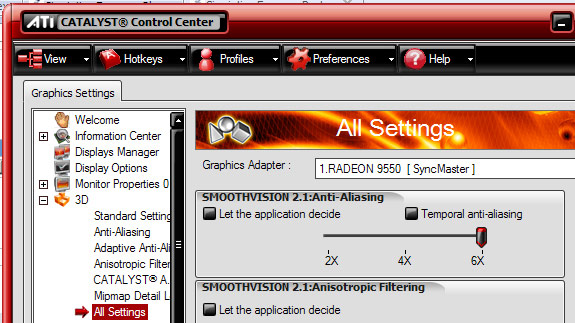
Then you may find this in "All settings", and select the Anti Aliasing at your taste, always remember to turn off AA in the sim

Image

P.S: I really do not recommend playing music while playing FS at the same time, specially with iTunes, that's a memory eater :o
Last edited by Alonso on Sat Jan 20, 2007 10:57 am, edited 1 time in total.
Image
Core i5 2500k @ 3.8 - 8GB DDR3 - GTX 560 OC
User avatar
Alonso
Major
Major
 
Posts: 2828
Joined: Fri Apr 21, 2006 7:13 pm
Location: Lima, Peru

Re: Problem with my anti-aliasing

Postby Conan Edogawa » Sat Jan 20, 2007 1:06 pm

Okay.

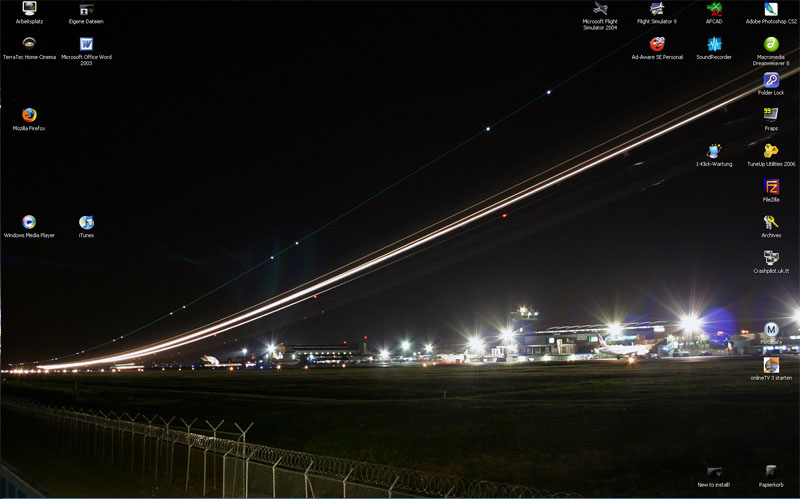
After installing, reinstalling, uninstalling, some other installing and rebooting 100 times, my Desktop looked like this:

BEFORE

Image

AFTER (original size!!)

Image


After being in hospital because of a shock and returning, I had installed an uninstalled again, until I had to reboot the system in Safe Mode. After removing every single ATI file I installed the main VGA driver and now everything is okay (even the AA and AF :D :D).

After all, thanks very much for the help, this forum is great (I can tell). ;)
Last edited by Conan Edogawa on Sat Jan 20, 2007 1:16 pm, edited 1 time in total.
Image

Specs: Intel Core2Quad Q6600 2,4GHz; 3,25GB RAM; nVidia EN8800GTS 512MB; Flight Simulator 9.1.
User avatar
Conan Edogawa
1st Lieutenant
1st Lieutenant
 
Posts: 488
Joined: Tue Dec 26, 2006 5:14 pm
Location: Hamburg, Germany

Re: Problem with my anti-aliasing

Postby born_2_fly » Sat Jan 20, 2007 4:44 pm

OK...

Firstly, make sure that you uninstall all of the ATi drivers you currently have on your system. Do this using Add/Remove programmes.
Then, go here and download Driver Cleaner Pro. (Do this even if you have already removed them using Add/Remove programmes) Once it's finished downloading, install, and run the programme. Select ATI, ATI CCC, and ATI uninstall utility. Then click start cleaning.
After cleaning has finished, go into the C:\ drive and delete any folders that say ATI.
Next, reboot.

Now go to the ATi site, and download the latest CCC and Display drivers. (Download the single installer, do not opt for the separate downloads)
Make sure that you have both .NET 1.1, and .NET 2.0 installed (both available from Microsoft website)
Run the ATi installer, and afterward reboot your system.

If on boot up, you screen seems to have shrunk again, log in, and right click on the desktop, go to Properties > Settings > and choose the 1024 x 768 option on the small slider to the left hand side of the box. Click OK, and Apply.

Now go into the ATI CCC and change the following settings:

AA=4x  
AF=16x,  
Catalyst AI to ADVANCED,  
Texture Quality HIGH or MAXIMUM
Wait for Vertical Refresh to #3 on the slider (Application Controlled)

Make sure under API Specific: Enable Geometry Instancing, Support DTX Texture, and Triple Buffering are checked, nothing else.  

Under VPU recover, uncheck prepare error report but leave Enable VPU checked

born_2_fly
 

Next

Return to FS 2004 - A Century of Flight

Who is online

Users browsing this forum: No registered users and 203 guests