Its the FS2004 DeHavilland Dash8-Q202 Horizon Air Package by Premier Aircraft Design. Its on the fs2004 section of simviation.com and it's under "props" on page 69.
Right. Now the dog can see the rabbit.

Before going any further here's a few tips to make all this so much easier. A few minutes spent on this now will save so much time & aggravation in future. First I created a special folder on my C: drive for this job named FS Downloads. I also created a shortcut to the FS Downloads folder & pasted it to my desktop. This makes it easy to locate downloaded zipfiles. While you're about it, locate & create a shortcut to your FS9 root directory folder {C:\Program Files\Microsoft Games\Flight Simulator 9) & paste that to your desktop.
Now we're ready to download & install our first aircraft to FS9. Everyone has their own favourite methods & there's no right or wrong way. I'll show you the way I do it. This one is a good example of how downloads should be configured. If they were all like this there would be no need for tutorials or instructions. I downloaded the file dhc8_qxe.zip to my FS Downloads folder & clicked the desktop shortcut to locate it in Windows Explorer. After extracting the zipfile to the FS Downloads folder this is what you should see.
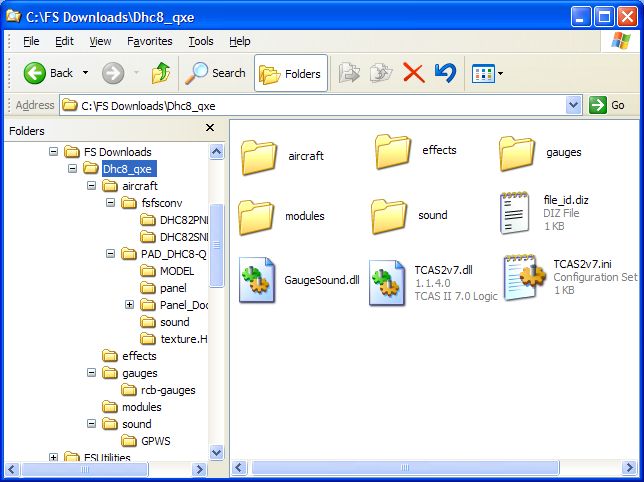
Note that this download is configured in subfolders with the same names as those in the FS9 directory itself - aircraft, effects, gauges, modules & sound. This should make installing it so easy as all it involves is transferring the contents of those folders into their corresponding folders in FS9.
First the aircraft. Open the folder named aircraft in the download & you will see 2 folders named fsfsconv & PAD_DHC8-Q 200_Horizon. You need to move these into the FS9\Aircraft folder. Click Edit/Select All on the Windows Explorer menu bar. This will select the 2 folders. Right-click (right-hand mouse button) on one of the selected folders & select Cut from the drop-down menu. Now go to the FS9 root directory by double-clicking on the desktop shortcut to it you created earlier. Open the Aircraft folder, right-click in an empty space in the window & select Paste. Click Yes when prompted to overwrite the fsfsconv folder. Both selected folders should appear in the FS9\Aircraft folder alongside all your other aircraft. The aircraft is now installed.
Now go back to the download & open the effects folder. Repeat the above procedure, this time pasting the contents into FS9\effects. Repeat this with the contents of the 4 remaining folders. (As a general rule Do NOT overwrite gauges if prompted.)
Finally the 2 DLL files named GaugeSound.dll & TCAS2v7.dll plus TCAS2v7.ini should be pasted into the FS9 root directory folder. That's it. The aircraft is now fully installed.
For your other questions I copied this from ReadMe_First.txt in the PAD_DHC8-Q 200_Horizon folder.
* Shift E operates the Airstair, Shift E +2 will operate the Cargo door
* This aircraft has wing views...
* Use CTRL+ Num Pad 1 for the Left Wing View
* Use CTRL+ Num Pad 3 for the Right Wing View
* Use CTRL+ Num Pad 2 for a Cabin View
* The RED Button on the left grip of the VC Yoke will open the ATC dialog box.I was also wondering if there are any pre-installed airplanes on fs2004 that have wing view?
The short answer is no. Panels with extra view windows are not usually used on aircraft with a DVC. There might be modified panels for them posted at Simviation & other FS sites. Do a search for < wing views >
Hope this helps.
PS. If your zipfiles look like this the WinXP "Compressed Folders" utility is set as your default unzipper.
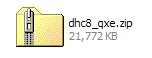
The Compressed (zipped) Folders utility included with WinXP treats zipfiles as ordinary folders. You can open zipfiles in Windows Explorer by double-clicking on the icon which means you can install most FS addons without extracting them.

 by upintheair28 » Tue Jan 09, 2007 8:36 pm




