How to Install downloaded files into FSX - New User Here

FSX including FSX Steam version.

How to Install downloaded files into FSX - New User Here

Postby Plugger69 » Mon Oct 04, 2010 5:56 am

Hello Everyone,

Brand new first time poster here and I love the site already...:-)

I have justdownloaded my first ever add-on file for Flight Sim X from the download section of this site and the file name is a380_rafgrey.zip

It downloaded in all of 19 seconds but as I am a first time downloader this is where I am stuck. How do I load it into Flight Sim X so that I can fly the plane and if anyone could show me step by step instructions it would be greatly appreciated.

Cheers,

Chris
Plugger69
Ground hog
Ground hog
 
Posts: 2
Joined: Mon Oct 04, 2010 6:49 am
Location: Australia

Re: How to Install downloaded files into FSX - New User Here

Postby Hagar » Mon Oct 04, 2010 6:16 am

Hi Chris & welcome. I'm downloading the file now thanks to the brand new search feature. I'll check it out later.

In the meantime you might like to read this tute. http://www.simviation.com/fsxaircraftinstall.htm

If there's anything you don't understand please post again.
Image

Founder & Sole Member - Grumpy's Over the Hill Club for Veteran Virtual Aviators
Member of the Fox Four Group
My Google Photos albums
My Flickr albums
User avatar
Hagar
Colonel
Colonel
 
Posts: 30868
Joined: Wed Jun 19, 2002 7:15 am
Location: Costa Geriatrica

Re: How to Install downloaded files into FSX - New User Here

Postby Plugger69 » Tue Oct 05, 2010 5:30 am

Hello Hagar,

Thank you for your response.

I followed that link to an absolute tee but for some reason when I copy and paste the file/folder into the Sim/Objects airplane folder and I then go and start up FSX, the planes are not in my directory....:(

Any help you can give would be appreciated.

These are my system Specs :

Intel (R) Core (R) I7-920 2.66GHz 8MB Cahce
12 GB 3 Channels DDR3 1333MHz memory
1.5TB SATA 3GB/s HDD NCQ
nVidia(R) GeForce(R) N250 GTS 1 GB PCI-E Graphics 19 in 1 media card reader
Microsoft (R) Windows Vista Premim 64 BIT Edition

I follow your link to a tee but for some reasons the planes just do not transfer over....:(

Cheers,

Chris
Plugger69
Ground hog
Ground hog
 
Posts: 2
Joined: Mon Oct 04, 2010 6:49 am
Location: Australia

Re: How to Install downloaded files into FSX - New User Here

Postby pete » Tue Oct 05, 2010 7:54 am

Hi,
In this case it's most likely because this aircraft will have FS2004 default sound and panel aliased.

If you open sound.cfg (open with notepad) & replace the text with this

[fltsim]
alias=Airbus_A321\sound


Now do the same with the panel.cfg

& replace the text with this

[fltsim]
alias=Airbus_A321\panel


To add a thumbnail to the aircraft install autothumbnail
Last edited by pete on Tue Oct 05, 2010 8:00 am, edited 1 time in total.
Simplicity is the ultimate sophistication. – Leonardo da Vinci
User avatar
pete
Administrator
Administrator
 
Posts: 10243
Joined: Mon Jan 01, 2001 2:01 am
Location: Cloud Cuckoo Land

Re: How to Install downloaded files into FSX - New User Here

Postby Hagar » Tue Oct 05, 2010 9:23 am

Hello Hagar,

Thank you for your response.

I followed that link to an absolute tee but for some reason when I copy and paste the file/folder into the Sim/Objects airplane folder and I then go and start up FSX, the planes are not in my directory....:(

Any help you can give would be appreciated.

Hi Chris. I suspect your A380 is hidden inside another folder. I'll walk you through how I would do this. I have WinXP but the principle is exactly the same in Vista.

I'll assume you followed the tute as far as extracting the zipfile to your Download folder.
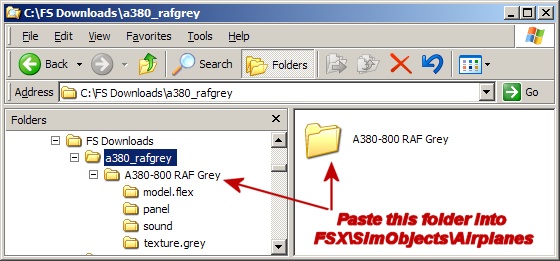
You should now have a folder alongside a380_rafgrey.zip named a380_rafgrey.
If you open the a380_rafgrey folder you should find another folder inside it named A380-800 RAF Grey.
This is the aircraft container folder that you paste into your FSX SimObjects\airplanes directory. See my shot below.
Image

The aircraft should now be listed on the FSX aircraft selection menu but as it was created for FS9 it will have no thumbnail image. This can be fixed later by pasting a screenshot of the aircraft saved as thumbnail.jpg into its Texture folder. Try Autothumbnail by all means but I could never get it to work on my PC.
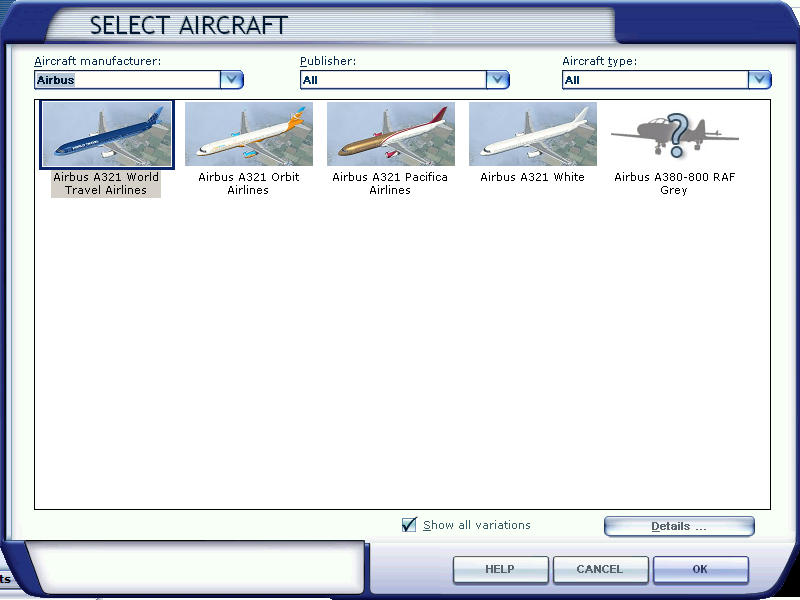
Image

If you select it you will find it uses the default B747-400 panel but has no sound. This can fixed by re-aliasing the Panel & Sound.cfg files as Pete suggested. You can open & edit CFG files in Notepad. (With Vista it might be easier to move them to your Desktop before editing then save changes before pasting them back again.)

Alternatively you can copy the default B747_400 Sound folder & paste it into the A380-800 RAF Grey folder. Overwrite files/folders when prompted. (The FSX default B747_400 is aliased to use the sound of the default B737_800.)

Please tell me if that fixed it for you.

Microsoft (R) Windows Vista Premim 64 BIT Edition

Note: As this an FS9 aircraft you might need to disable DirectX 10 Preview from FSX Settings for the textures to display properly.
Last edited by Hagar on Tue Oct 05, 2010 9:24 am, edited 1 time in total.
Image

Founder & Sole Member - Grumpy's Over the Hill Club for Veteran Virtual Aviators
Member of the Fox Four Group
My Google Photos albums
My Flickr albums
User avatar
Hagar
Colonel
Colonel
 
Posts: 30868
Joined: Wed Jun 19, 2002 7:15 am
Location: Costa Geriatrica


Return to Flight Simulator X (FSX) and Steam

Who is online

Users browsing this forum: No registered users and 635 guests