Hi, I have enjoyed flying my fs2002 and fs2004 for quite sometime now but have only just figured how do download new planes to it, well it seems that some i can download with no problems at all, but some are prooving more difficuilt Im trying to recreate the Eastleigh airport (now Southampton intl, pffft!) of my childhood days this means Air UK f-27s and Heralds, Viscounts of British air ferries and Guernsey airlines, shorts 360's 330s (the only one thats came into our airport that i can find in the downloads is the aurigny one) and Aurigny trislanders (which are the only thing still operating from Eastleigh that was around when i was a kid.
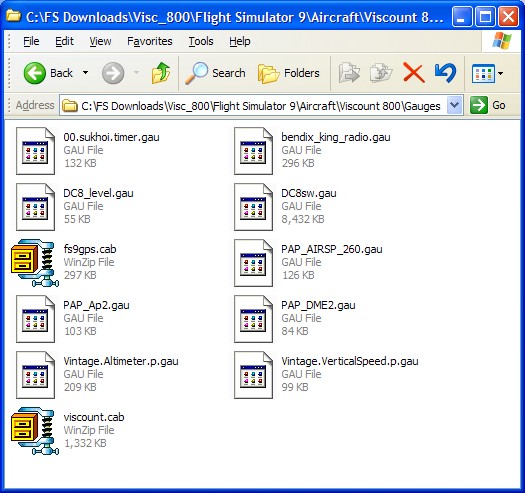
Anyway, i managed to download a viscount and eventualy managed to get it in the guernsey airlines livery, so i was a bit gutted when i went to fly it that all the gauges were missing, after a bit of fiddling about i managed to get the main flying instruments but theres still a lot missing (mainly the engine instrument panel and throttle area) then i downlaoded a f-27 and when i tried to change the livery to air UK nothing happened, infact i just ended up with a grey f-27, i manged to get the original textures back, but i really want it to be air UK and when i looked in the texture thing for the air uk textures all i saw was blank, it seems there are no textures at all other than prop disc, and as for the trislander, absoloutley nothing at all, even though it appeared to be all in the correct place
i would really appreciate if someone can explain what to do, i am a complete novice to downloading planes so i need it to be explained in a very simple way, when i have sucsessfully downloaded planes this is what i did, i downloaded it to a folder i made called fs downloads then i used winzip to unzip it to c:\program files/microsoft games/flight simulator 9 then i drag it into the aircraft files, and that has worked fine with a tuccano and a jetstream so i am a bit annoyed its not so simple with other planes!

Simviation Forums
Flight Simulator and other chat