Welcome to Simviation mattyd.
Adding images is very simple. If you look up at the top in the navigation bar just below the SimV logo, you will see a link "Upload Images". Click on that link. This will bring up a page to upload your images. IMPORTANT: Read the info on that page concerning the rules, sizes etc. of images and upload in general.
When you are ready to upload the image hit the "Browse" button and navigate to the location of your image. HINT: Give your image a short and simple name you can remember, or write it down.
When you are ready to upload, just hit the "UPLOAD" button. Depending on your connection, number of images and size of file you are uploading, this can take a little bit..............but not too long. When the image(s) is/are uploaded, you will get a new screen telling you that the upload was successful AND a URL. Copy that URL and/or write it down.
Now you are ready to post your image. Go to the forums page you want to post the image. Above the reply box you will see a little image just to the left of the email icon, it's a little snapshot looking icon. Hit that and it will bring up some syntax, just remove the URL part so you have .
Now, in between the brackets paste the URL that you copied from the other page. At the end of this URL you will see /yourpic.jpg. In place of the "yourpic" type in the name of your jpg. It may look something like this:
http://blah blah blah/blah blah/pic1.jpg
Then just hit the post button. That should do you.
Good luck and enjoy the commaraderie here at Simviation. A great bunch of very knowlegable folks here. Again, welcome and post away!!
Systemax Sabre Ultimate gaming rig.
I got all the goodies and all the power I need to run anything thrown at me for the next two months!

 by mattyd987 » Sun May 22, 2005 10:27 am





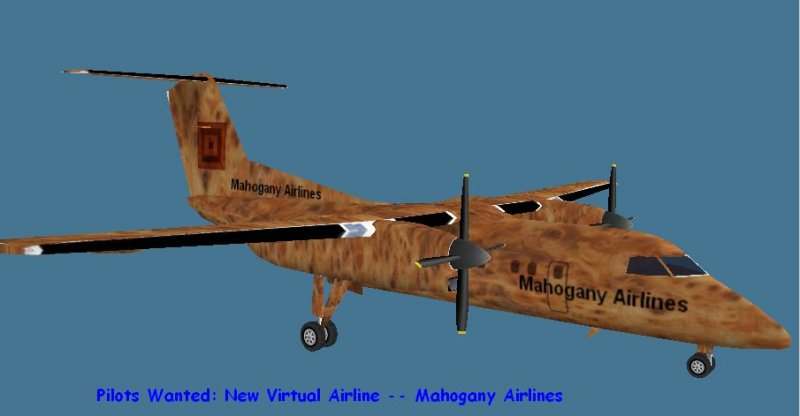 Image Post Test Only
 PhotoShop 7 user