Hi everyone,
Just to let you know the edit worked perfectly!!!
Thanks to you all for your help. It turned out to be a very easy fix. The steps were as follows:
1. Download DXTBmp from the following link:
http://www.btinternet.com/~mnwright/programs/dxtbmp.htm - THANKS HAGAR!!!!
2. Now follow these instructions:
The textures you will need to edit are
- glassdetail.bmp
- glassdetail2.bmp
- diver6.bmp
They are located in the aircrafts texture folder. Start with folder Texture1
Remember to back up the original files before you start editing, e.g. slip the word
old in front of the filenames so as to retain an original copy.
Each time you edit the textures, you will need to:
- create an alpha channel(black) --> select
Alpha from top menu and then click on
Create Alpha Channel (Black)
- export alpha to editor --> click on
Alpha from menu and then
Send alpha to editor- fill the alpha with a dark grey --> Click on the little paint can tipping (fill tool) and select the darkest grey there is (next to black) then click on the image to fill it.
- save in the editor --> Click on
File, then
Save, then exit out of the paint editor
- refresh alpha in DXTBMP --> you should now be back in DXTBmp. Click once again on
Alpha, then select
Refresh Alpha- save the picture as extended bitmap, DTX3 --> click on
File,
Save As then select
Extended BitmapRemember to follow these steps for each of the files:
- glassdetail.bmp
- glassdetail2.bmp
- diver6.bmp
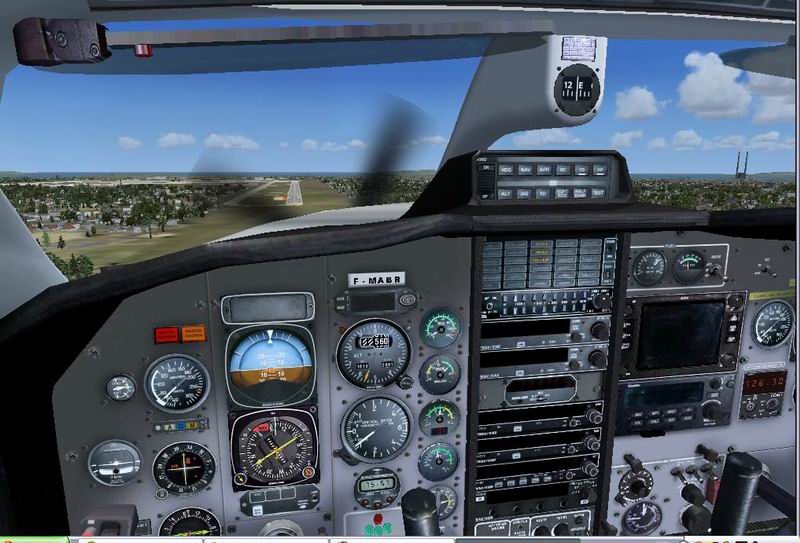
Once that is all complete, you can just drag and drop the newly edited files into your other texture folder - texture2, to correct the same VC opaque window problem.
Great effort team - we got there, no more mandatory IFR flight - we can see!!!!!
Happy flying.
Chrisgin