Testing angles
 Posted: Sat Jul 18, 2009 8:32 am
Hi all,
There are some models that were MUST-HAVEs back in FS9... and that are still MUST-HAVEs in FSX. The Mirage IV from Roland Laborie, one of the greatest virtual cockpits around, for one of the most beautifull european birds (and the one and only machine that visually express as much "power" as the russian machines).
I had a quick glance in the aircraft.cfg of the default Baron, took the camera definitions from there and pasted them into the aircraft.cfg of the Mirage, then started shooting. I still have to adjust the values to make them more convenient for such a big plane, but it works
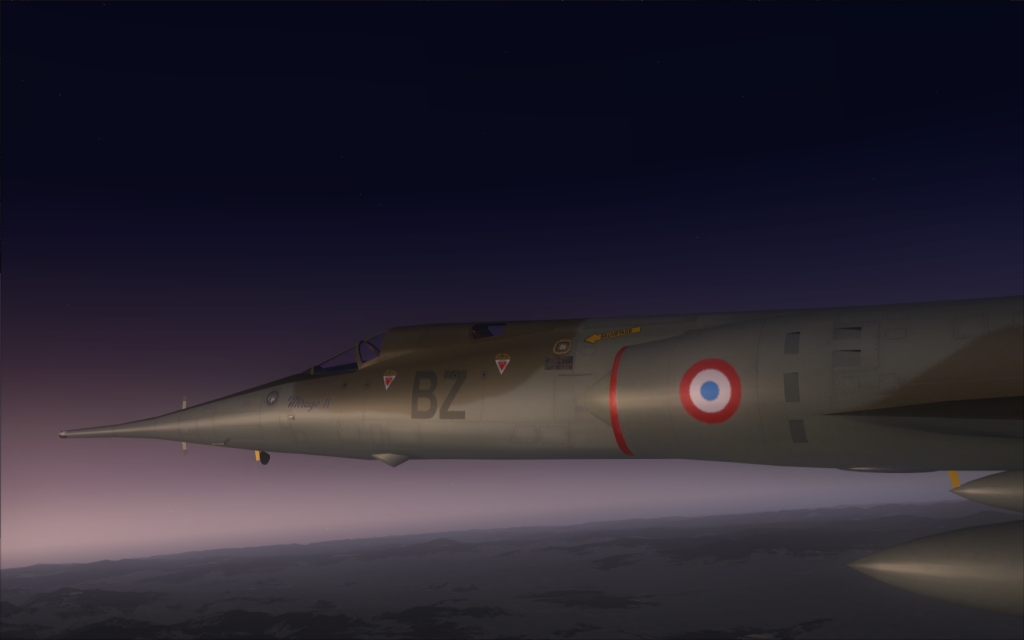
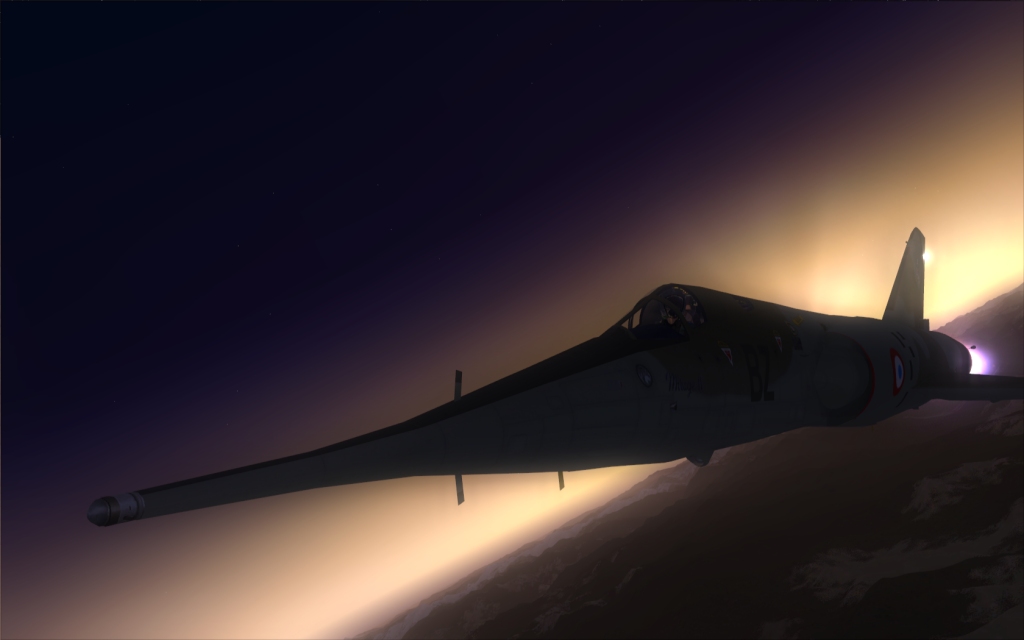
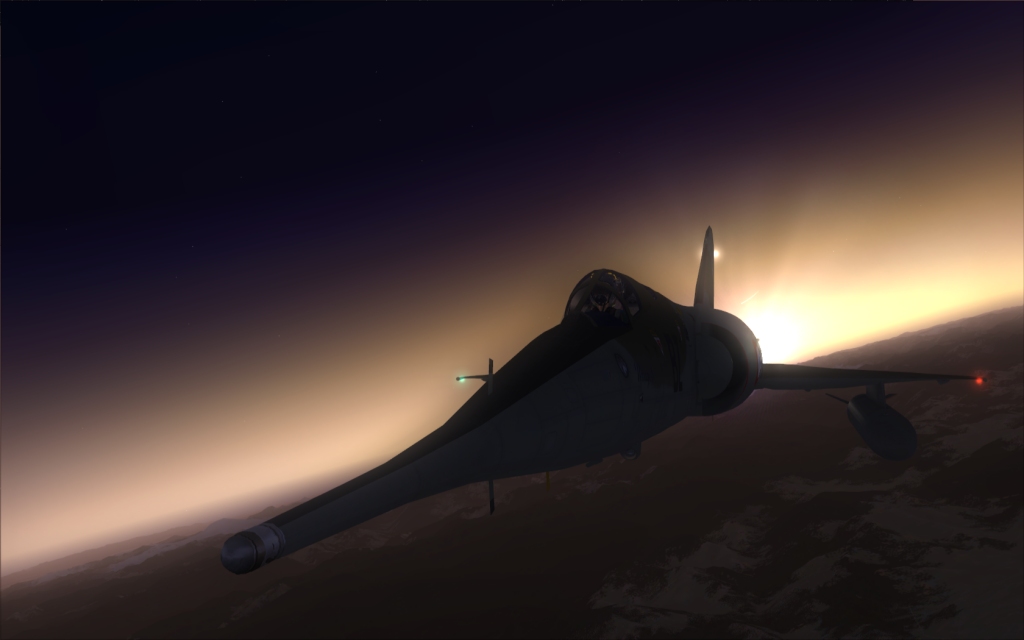
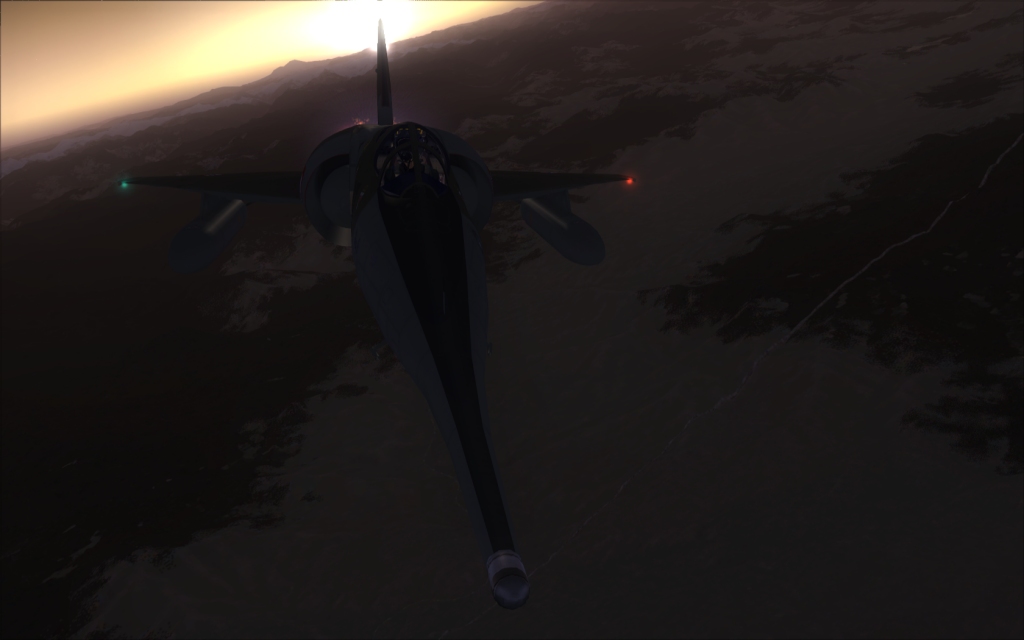
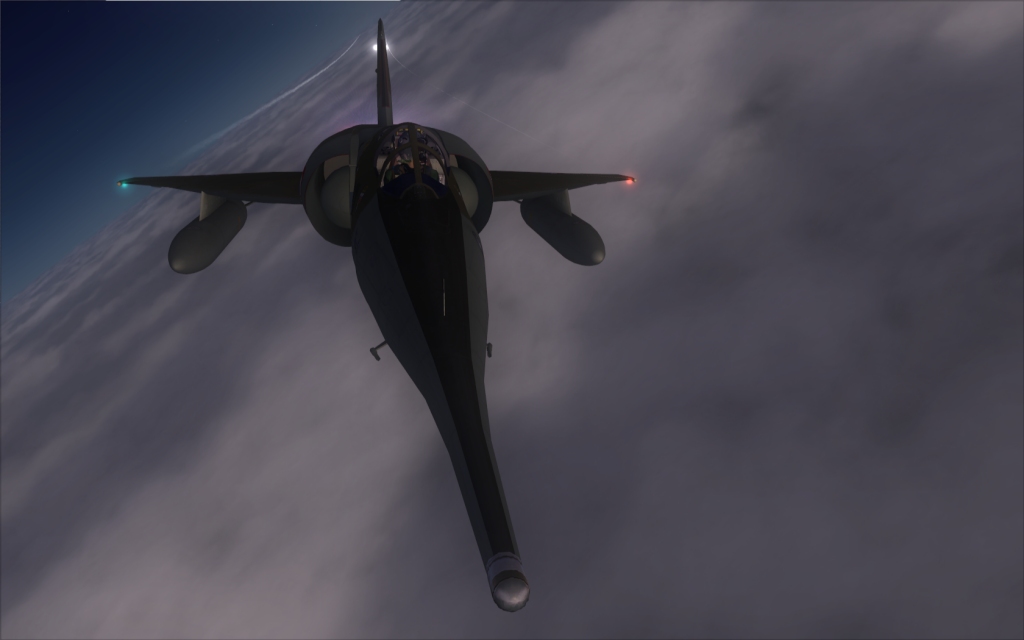
The shots are dark, I know. Hope you like them anyway, and of course, comments and criticism are very welcome as usual
There are some models that were MUST-HAVEs back in FS9... and that are still MUST-HAVEs in FSX. The Mirage IV from Roland Laborie, one of the greatest virtual cockpits around, for one of the most beautifull european birds (and the one and only machine that visually express as much "power" as the russian machines).
I had a quick glance in the aircraft.cfg of the default Baron, took the camera definitions from there and pasted them into the aircraft.cfg of the Mirage, then started shooting. I still have to adjust the values to make them more convenient for such a big plane, but it works
The shots are dark, I know. Hope you like them anyway, and of course, comments and criticism are very welcome as usual
