Page 1 of 1

New guy testing his screenshot abilities

PostPosted: Wed Oct 19, 2005 3:28 pm
by Censport
My goal is competing in a screenshot competition.... and hopefully not getting laughted at!  ;D

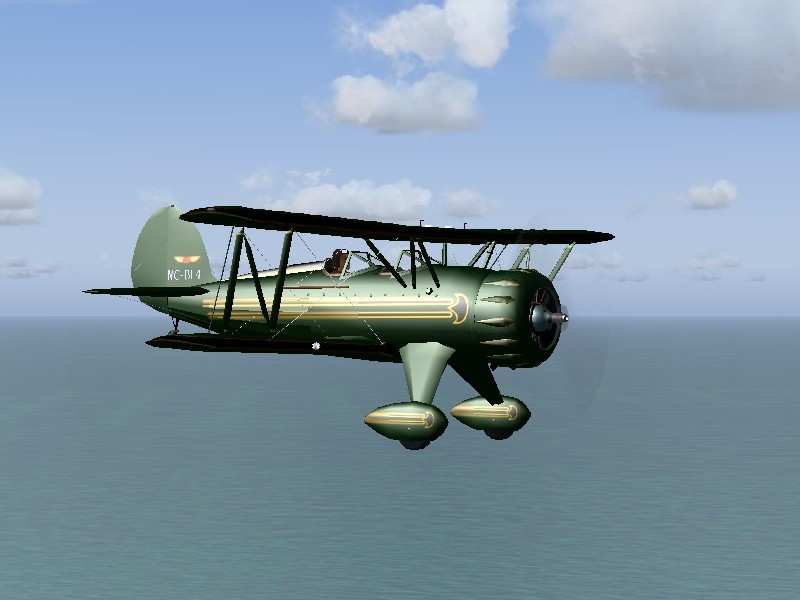
In this shot, I'm flying the green Waco from Hachijojima (RJTH) to Chofu (RJTF). I'm using the payware Japanscenery for my Tokyo flying, very expensive but very nice. Of course, none of it is in this shot, that'll come later.
Image

What do you think? Don't hold back!
Re: New guy testing his screenshot abilities

PostPosted: Wed Oct 19, 2005 3:44 pm
by EGNX
Very Nice!  ;D

Re: New guy testing his screenshot abilities

PostPosted: Wed Oct 19, 2005 3:47 pm
by Ecko
Very nice!
Nice choice of plane too! but with a little Anti-Aliasing, the shot will be so much better. Depending on your system you could try some Anisotropic Filtering aswell.

Overall a nice shot though! ;)

Re: New guy testing his screenshot abilities

PostPosted: Wed Oct 19, 2005 3:52 pm
by Censport
Very nice!
Nice choice of plane too! but with a little Anti-Aliasing, the shot will be so much better. Depending on your system you could try some Anisotropic Filtering aswell.

Overall a nice shot though! ;)

Thanks!

But what are "anti-aliasing" and "anistropic filtering"? Are those options in FS9 or on my computer's system? Sorry if those are elementary questions, but I'm quite new to screenshots.

Re: New guy testing his screenshot abilities

PostPosted: Wed Oct 19, 2005 3:57 pm
by Katahu
Right-click your desktop and hit "properties". Then go to "Settings" tab and click "Advanced". If you have an ATI video card, go to "Direct3D" tab and look at where it says "Anti-aliasing". Move the slider to either 2x, 4x, or whichever. Click apply and that's it.

It should be somewhat similar for Nvidia video cards as well.

NOTE: Don't use the anti-aliasing feature WITHIN flight simulator's "Display" menu. If you do that while your video card is already working on it, then FS will take up resources and cause a possible stutter or jumping effect as you fly a plane in the FS world.

The reason for the anti-aliasing is so that the display for both FS and your screenshots will look much more smoother. Smooth shots are always favored, especially if you want to participate in our monthly Screenshot Contests.

Re: New guy testing his screenshot abilities

PostPosted: Wed Oct 19, 2005 4:02 pm
by flyboy 28
A few tips regarding the artistic side of screenshots:

Use diagonals. They draw the person in towards the photo, or in this case, screen.

Experiment with different weather. Flying is not all light fluffy clouds and blue skies.

Also, try some enviornment addons, like water textures or sunset textures

Zoom is a good effect. To get different types of zoom without the standard Microsoft settings, press and keep pressing shift, along with the + and - keys.


Keep those in mind along with the graphics portion, and you'll be churning out great shots in no time!

That's very nice for the first time, though. :)

James

Re: New guy testing his screenshot abilities

PostPosted: Wed Oct 19, 2005 4:06 pm
by Censport
Thanks for the advice guys! I'll experiment tonight and see what I can come up with for tomorrow's post!

Re: New guy testing his screenshot abilities

PostPosted: Wed Oct 19, 2005 9:24 pm
by jordonj
For me, dawn and dusk are the best...

Not great, but we all start somewhere...

Don't worry!  You'll pick it up in no time!

Re: New guy testing his screenshot abilities

PostPosted: Thu Oct 20, 2005 4:07 am
by ozzy72
Better than my first ever screenie back in the early 2k2 days ;)

Re: New guy testing his screenshot abilities

PostPosted: Thu Oct 20, 2005 5:53 am
by killerbunny
I think its a very nice shot. :)

But as said before : use Anti-aliasing

Re: New guy testing his screenshot abilities

PostPosted: Thu Oct 20, 2005 10:55 am
by Censport
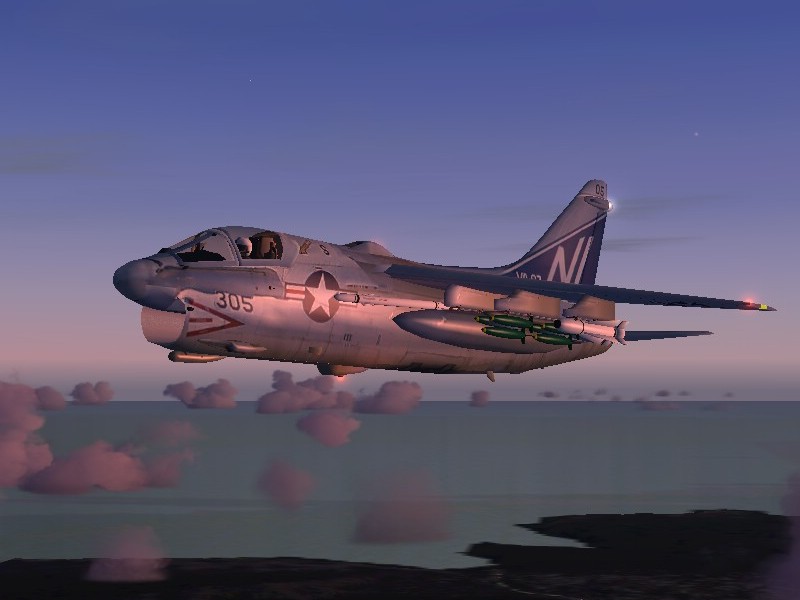
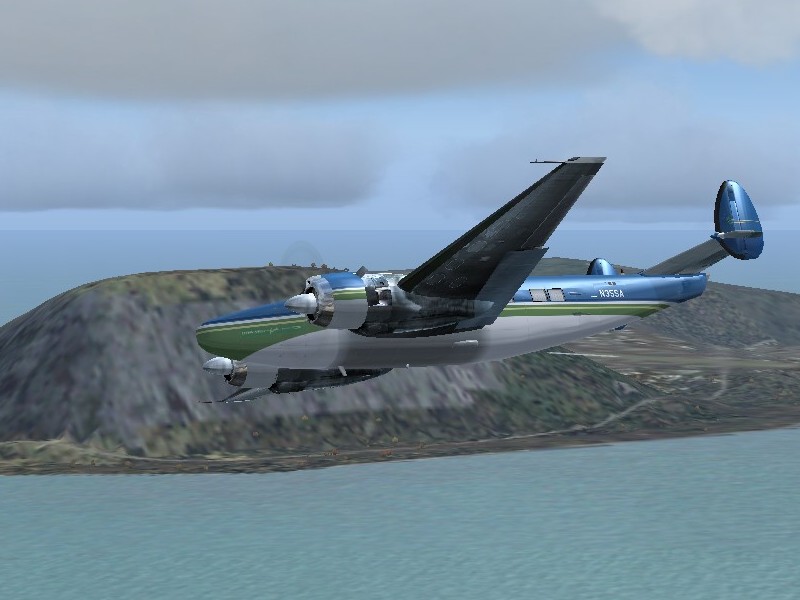
I can't find where to adjust the anti-aliasing on my computer, but I did switch it on the FlightSim settings. Also, I played around with the display settings a bit. Still, these two were the best from last night. These are climbing out of Okinawa (ROAH), headed for Tokyo.
Image
Image

My card, if I'm reading the info on my computer correctly, is a Radeon 9600 series. It was designed for AutoCAD, not FlightSimming. You know how it is: work first, play later (or so I keep having to remind myself!).

Re: New guy testing his screenshot abilities

PostPosted: Thu Oct 20, 2005 11:00 am
by FLAPS_DOWN
Right-click your desktop and hit "properties". Then go to "Settings" tab and click "Advanced". If you have an ATI video card, go to "Direct3D" tab and look at where it says "Anti-aliasing". Move the slider to either 2x, 4x, or whichever. Click apply and that's it.

It should be somewhat similar for Nvidia video cards as well.

NOTE: Don't use the anti-aliasing feature WITHIN flight simulator's "Display" menu. If you do that while your video card is already working on it, then FS will take up resources and cause a possible stutter or jumping effect as you fly a plane in the FS world.

The reason for the anti-aliasing is so that the display for both FS and your screenshots will look much more smoother. Smooth shots are always favored, especially if you want to participate in our monthly Screenshot Contests.

So as I have an ATI card I want that box selected or not selected in the properties menu?  I am a little confused about what should be and shouldn't be checked in the properties.  A little help is greatly appreciated.

Re: New guy testing his screenshot abilities

PostPosted: Thu Oct 20, 2005 11:24 am
by Censport
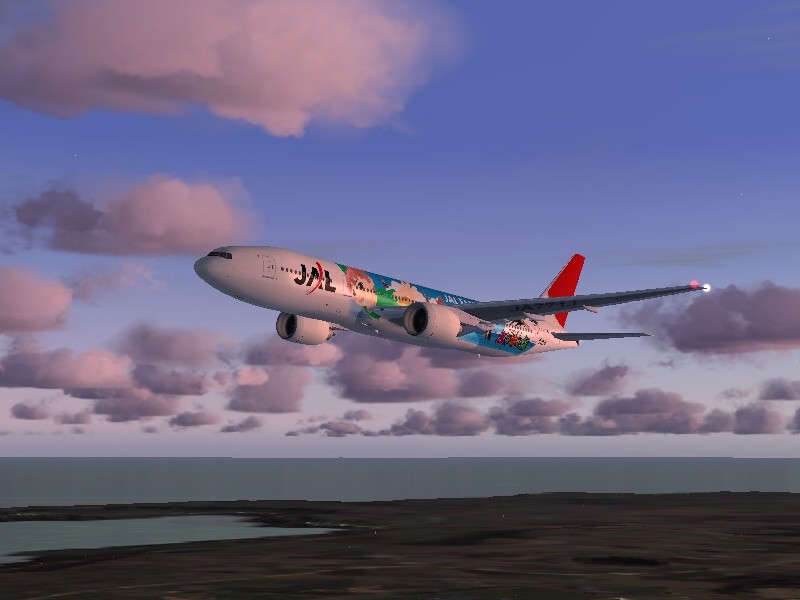
Here's another one, where I tried the "Cold Fronts" weather setting. This is leaving Hachijojima (RJTH) again.
Image

And this one was an attempt at a night shot. Flying a Maule past the Tokyo Tower. I think I downloaded the tower from FlightSim, but it's also available in a payware package from JapanScenery.
Image

And in case you're wondering, yes sometimes I do fly default aircraft!  :D Just not that often.  :o