Adding afterburners?

Forum dedicated to Microsoft FS2004 - "A Century of Flight".

Adding afterburners?

Postby Marlin » Wed Dec 14, 2005 12:20 am

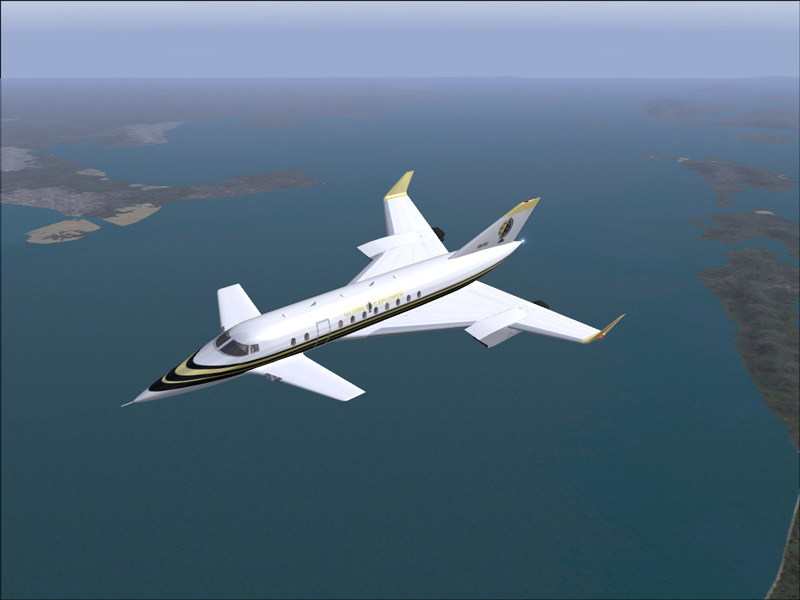
Thanks to Jakemaster I found this real cool looking/flying craft. Great VC/panel by the way.

Image

But there are no effects at all, like an afterburner for example.

Could someone instruct me on how to add an afterburner like the one on my F-18?
Marlin
1st Lieutenant
1st Lieutenant
 
Posts: 486
Joined: Thu Dec 30, 2004 1:14 am
Location: NEW Mexico

Re: Adding afterburners?

Postby n_richardson05 » Wed Dec 14, 2005 11:48 am

are you shure did you press i for extra effects or l witch somtimes turnes on the flames or what ever you call them. im shure you have tryed but just checking

i think my name shuld be captin obvious
Last edited by n_richardson05 on Wed Dec 14, 2005 11:49 am, edited 1 time in total.
big or small i like them all ...? that dosent sound right
slew mode dose not count as flying
737-700aholic
User avatar
n_richardson05
2nd Lieutenant
2nd Lieutenant
 
Posts: 285
Joined: Fri Oct 03, 2003 11:15 pm
Location: massachussets

Re: Adding afterburners?

Postby simonmd » Wed Dec 14, 2005 12:34 pm

AB's can be added to anything, they are just basicaly an extra set of 'lights'. See my thread here asking the same about adding them to the FSFrance Concorde.
Image
This months's screenshot contest entry> http://www.simviation.com/cgi-bin/yabb2 ... 1197692798
User avatar
simonmd
Major
Major
 
Posts: 1847
Joined: Sun Nov 06, 2005 4:47 pm
Location: s wales, UK

Re: Adding afterburners?

Postby Graycat » Wed Dec 14, 2005 1:04 pm

Heya Marlin,

The Stratojet Excalibur!
Last edited by Graycat on Wed Dec 14, 2005 1:16 pm, edited 1 time in total.
Happy Flying -- And may your main wheels always touch down first!

Dave F.
User avatar
Graycat
2nd Lieutenant
2nd Lieutenant
 
Posts: 114
Joined: Thu Jun 23, 2005 11:31 am
Location: Dallas, TX

Re: Adding afterburners?

Postby Marlin » Wed Dec 14, 2005 5:16 pm

Thanks everyone for the advice.

I'll have to search out the thread that you mentioned simonmd, thanks in advance.

Gray cat, yes I checked out his site and am very impressed !
Last edited by Marlin on Thu Dec 15, 2005 12:06 am, edited 1 time in total.
Marlin
1st Lieutenant
1st Lieutenant
 
Posts: 486
Joined: Thu Dec 30, 2004 1:14 am
Location: NEW Mexico

Re: Adding afterburners?

Postby Graycat » Thu Dec 15, 2005 2:48 pm

Heya Marlin,

I don't have a clue what program you may be talking about, however, here's an easy way to add the afterburners in the Military-Effects Package I described in my previous post.

Download and unzip the Military-Effects Package into your FS 2004 Aircrafts Folder.

Copy/Paste the file fx_burner2.fx from your Military-Effects Package Folder into your Main FS 2004 Effects folder.

Make a backup of your Stratojet Excalibur Panel.cfg file.  Now open your original Panel.cfg file with Windows Notepad and add the following line to the Main Panel [Window00] list:

gaugeXX=military_xml!Logo_Burner,  0,5,5,5

Where gaugeXX is the next number gauge on the list -- say for instance the last gauge listed in your [Window00] main panel is gauge36 then make gaugeXX = gauge37.

Now Save and Exit the Windows Notepad.

Now make a backup of your Stratojet Excalibur Aircraft.cfg file.  You can then open your Aircraft.cfg file and scroll down to the [Lights] section.  Copy/Paste these two lines at the end of your list of lights:

light.XX=9, -23.667, -13.10, -1.10, fx_burner2
light.XX=9, -23.667,  13.10, -1.10, fx_burner2

Note: the numbers above are the correct (X,Y,Z) coordinate positions for the Stratojet Excalibur  afterburner effects.

Once again look at the number of lights listed under the [Lights] section.  Make the first line above the next number in line and add one more for the last line.  Example: If the last light under the [Lights] section is light.11 then that would make the two lines above light.12 and light.13.

Once again Save and Exit the Windows Notepad.

You're finished!

Let me know if you also want to add two more effects which occur when you exceed Mach 1-- an audible Sonic Boom as well as a visual vapor cloud which momentarily surrounds the exterior of your Stratojet Excalibur!

To me afterburner, Mach 1 transition vapor, and sonic boom effects are absolutely critical on all of my supersonic aircraft!
Happy Flying -- And may your main wheels always touch down first!

Dave F.
User avatar
Graycat
2nd Lieutenant
2nd Lieutenant
 
Posts: 114
Joined: Thu Jun 23, 2005 11:31 am
Location: Dallas, TX

Re: Adding afterburners?

Postby Marlin » Fri Dec 16, 2005 3:55 am

Hooray!!!!

Thanks for the help there! I now have the jet flame working and also the afterburner comes on around 80% or somewhere like that. From what you gave me along with the instruction I finally got it working. Thanks

Oh I also figured out that you don
Marlin
1st Lieutenant
1st Lieutenant
 
Posts: 486
Joined: Thu Dec 30, 2004 1:14 am
Location: NEW Mexico

Re: Adding afterburners?

Postby Graycat » Fri Dec 16, 2005 12:17 pm

Heya Marlin,

The sonic boom visual and audio effect is part of the Military Jet Carrier Effects package by Rob Barendregt and Doug Dawson available here at SimV:

http://www.simviation.com/cgi-bin/syb.cgi?section=military&file=RCBco-11.zip

Installing the visual and audio effects are very simple -- just place 2 gauge lines in your aircraft Panel.cfg file and copy/paste the RCBCO folder into your FS 2004 main Gauge folder.  I figure that you already have Doug Dawson's FSUIPC.

The method that I use to locate X,Y,Z coordinates on an aircraft -- it's a manual process; but not too difficult --

First load your FS 2004 default flight and change the aircraft to the one you wish to work on.  You don't have to run the engines -- just make sure that the aircraft is on battery power and that the Nav lights are on.

Next Save this as a new flight (I always call mine "Light Test").  Now minimize FS 2004 and Save a Backup of your Aircraft.cfg file just in case.  Open the Aircraft.cfg file for the aircraft that you wish to work on using Windows Notepad.  In the Aircraft.cfg [Lights] section add these lines at the top so that your list looks like this:

[LIGHTS]
//Types: 1=beacon, 2=strobe, 3=navigation, 4=cockpit, 5=landing
//6=taxi light, 7=recognition light, 8=wing light, 9=logo light
//          Type         (X Axis)  (Y Axis)   (Z Axis)                        
light.0 =4,     25.00,     0.0,                       1.58,                 fx_vclight
light.1 =3,   -27.136,    0.0,                 10.06,                 fx_navwhi
light.2 =3,    14.911,   -5.088,               1.922,                 fx_navred

Now you have 3 columns lined up so that you can see that the first numbers are for the X Axis, second numbers are for the Y Axis, and the third set of numbers are for the Z Axis.

Red is a color that I can see most clearly so I add another Red Nav light at the end of the list in the Aircraft.cfg [Lights] section:

light.XX =3,    25.00,   -6.0,     2.0,                 fx_navred

As before, light.XX= denotes the last number on your list of lights plus one.  If you have light.13= as your last line on the [Lights] list then light.XX= light.14

This is what I call a "Marker Light".  You can go back to FS 2004, view your aircraft and see the position of this light.  To move this light around just minimize FS 2004 and change the numbers under the X,Y,Z columns in the [Lights] section of the Aircraft.cfg.

X Axis = Adding to the number under the X Axis column moves the "Marker Light" towards the nose of the aircraft -- subtracting moves the light towards the tail.

Y Axis = Adding to the number under the Y Axis column moves the "Marker Light" towards the right (starboard) and subtracting moves the light towards the left (Port side).

Z Axis = Adding to the number under the Z Axis column moves the "Marker Light" upwards and subtracting moves the light downwards.

Now comes the fun part.  When you change the numbers under the [Lights] section just Maximize FS 2004 and view your aircraft -- Note that you will see the light appearing at the OLD coordinates.  To view the light in your new updated position just Pull up the FS2004 main menu and select Flight --> Select Flight --> Light Test.  This will reset the FS 2004 flight and now you can see the red light in the NEW position.

Once you get the light positioned where you want it, minimize FS 2004 and bring up the Aircraft.cfg file again.

Now make a note of the X,Y,Z coordinates of the red nav light you have been using for your "Marker Light".

These are the X,Y,Z coordinates!  If you are finished then you can go back under the Aircraft.cfg [Lights] section and delete the red Nav light that you added earlier and Save the Aircraft.cfg file.

Now you can go back to FS 2004, change the saved flight to your default flight and then delete the "Light Test" saved flight.

This method is a bit tedious but it can be used to determine X,Y,Z coordinates for light placement (if you want to add more lights to your aircraft), Effects placements (if you want to add smoke and afterburner effects), as well as Weight and Balance (personally I like to modify the aircraft Weight and Balance so that it's more realistic).

As always if you need further help just post or IM me here at SimV!
Happy Flying -- And may your main wheels always touch down first!

Dave F.
User avatar
Graycat
2nd Lieutenant
2nd Lieutenant
 
Posts: 114
Joined: Thu Jun 23, 2005 11:31 am
Location: Dallas, TX


Return to FS 2004 - A Century of Flight

Who is online

Users browsing this forum: No registered users and 340 guests